
How to develop plug-in modules
Module Plugin Usage Scenarios
Primarily used to inject custom code into specified applications in the cloud machine, allowing modifications to the Java layer or native layer.
Supported Features
Automatic injection of DEX files
Automatic injection of SO files
Built-in Java layer Hook framework: LspLant
Built-in native layer Hook framework: Dobby
Module Example Download
Build Environment
This project currently uses:
- Android Gradle Plugin: 8.6.0
- Gradle Wrapper: 8.7
- compileSdk / targetSdk: 34
- minSdk: 29
- CMake: 3.22.1
- JDK: 21
Important: build this project with JDK 21. If you use a newer JDK such as JDK 23,
./gradlew assembleDebugmay fail with:
Unsupported class file major version 67
Environment Preparation
It is recommended to open and build this project with Android Studio, and install these components in advance:
- Android SDK Platform 34
- Android SDK Build-Tools
- CMake 3.22.1
- Android NDK
- JDK 21
Download and Configure JDK 21
Option 1: Download via Android Studio
- Open Android Studio.
- Go to
Settings/Preferences->Build, Execution, Deployment->Build Tools->Gradle. - In
Gradle JDK, selectDownload JDK.... - Choose version
21, download it, and apply the setting.
If you only build inside Android Studio, this is the simplest approach.
Option 2: Install JDK 21 manually
You can also install OpenJDK 21 / Temurin 21 yourself and configure JAVA_HOME.
Example for Linux / macOS:
export JAVA_HOME=/path/to/jdk-21
export PATH=$JAVA_HOME/bin:$PATH

java -version
After confirming the output contains 21, run the build command.
If you use zsh, you can append the two environment variable lines above to ~/.zshrc to make them persistent.
If you do not want to change the system default JDK, you can also point Gradle to JDK 21 explicitly. Add this to ~/.gradle/gradle.properties or the project's root gradle.properties:
org.gradle.java.home=/path/to/jdk-21This lets Gradle use JDK 21 even when the terminal default Java version is not 21.
Build Instructions
Build with Android Studio
- Open the project in Android Studio.
- Make sure
Gradle JDKis set to JDK 21. - Wait for Gradle Sync to finish.
- Run
Build->Make Project, or directly buildassembleDebug.
Build from the command line
First, make sure the current terminal is using Java 21:
java -version
./gradlew -version
Then run:
./gradlew assembleDebugAfter a successful build, the APK is generated at:
app/build/outputs/apk/debug/app-debug.apkCommon Issue
1. Unsupported class file major version 67
Cause: Gradle is running with the wrong JDK version, usually JDK 23 instead of JDK 21.
Fix:
export JAVA_HOME=/path/to/jdk-21
export PATH=$JAVA_HOME/bin:$PATH
java -version
./gradlew assembleDebug
If you build in Android Studio, switch Gradle JDK to JDK 21.
If you keep multiple JDKs installed and do not want to switch frequently, you can also use the org.gradle.java.home setting above to pin Gradle to JDK 21.
Module Installation
Open the project in Android Studio. After compilation, obtain the module file app-debug.apk.
Upload this file to the cloud machine, for example, to the path /sdcard/Download/app-debug.apk.
Use the following commands for installation and viewing:
// First connect to the cloud machine
adb connect xx.xx.xx.xx

// Enter the cloud machine terminal
adb shell

// Then install the module
dplus install patch:/sdcard/Download/app-debug.apk

// After successful installation, view the module
dplus dump

// Uninstall and delete the module by module name
dplus uninstall dplus_demo
Module Development Introduction
The module source code structure is as shown in the figure below.
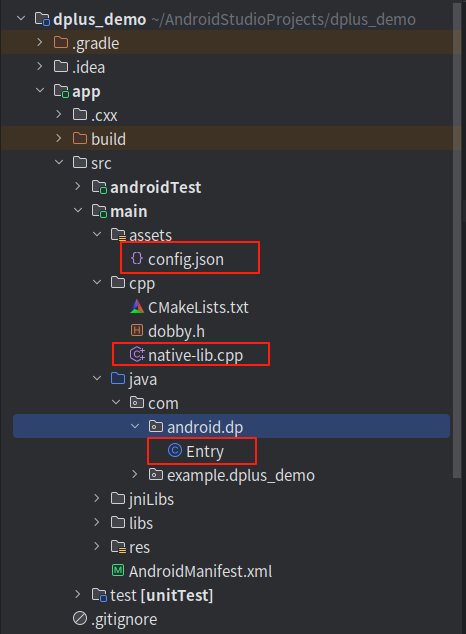
The config.json file is used to configure the module.
native-lib.cpp implements examples of Dobby hooks.
Entry.java serves as the entry point for Java layer hooks.
Config Configuration Explanation
This file is primarily used to describe the module and guide the injection process. Sample data is as follows:
{
    "name": "dplus_demo",   // Module name, used during uninstallation
    "package":"com.example.dplus_demo",  // Module package name
    "desc": "module",       // Module description
    "type": "user",         // Module type, mainly "system" or "user"
    "libs": "libdplus_demo.so",  // SO files to inject; can be omitted or configured with multiple entries separated by ';'
    "pattern": [
        "com.android.settings"   // Package names where the module takes effect
    ]
}
Dobby Example
The following demonstrates a simple hook on the openat function to output logs:
int (*source_openat)(int fd, const char *path, int oflag, int mode) = nullptr;

int MyOpenAt(int fd, const char *pathname, int flags, int mode) {
    LOGI("MyOpenAt  pathname %s",pathname);
    return source_openat(fd, pathname, flags, mode);
}

void HookOpenAt() {
    // Resolve function address
    void *__openat =
            DobbySymbolResolver("libc.so", "__openat");

    if (__openat == nullptr) {
        LOGI("__openat null ");
        return;
    }

    LOGI("Got __openat address ");

    // Replace original function with Dobby
    if (DobbyHook((void *) __openat,
                  (void *) MyOpenAt,
                  (void **) &source_openat) == 0) {
        LOGI("DobbyHook __openat success");
    }
}

jint JNICALL JNI_OnLoad(JavaVM *vm, void *reserved) {

    LOGI("Test JNI_OnLoad starting load");
    HookOpenAt();
    return JNI_VERSION_1_6;
}
Java Layer Example
The init function serves as an entry point after the application starts. Execute relevant logic here. The LspLant-related code has been slightly modified, so some classes and functions may not use their original names.
public class Entry {

    public String TAG="demo_Entry";

    public void init(Application app){
        DPLog.i(TAG,"enter init");
        LSPHelpers.findAndHookMethod("java.util.HashMap", app.getClassLoader(), "put",Object.class,Object.class, new LSP_MethodH() {
            @Override
            protected void beforeHookedMethod(MethodHookParam param) throws Throwable {
                super.beforeHookedMethod(param);
                Log.i(TAG,"enter HashMap.put key:"+param.args[0]+",value:"+param.args[1]);
            }

            @Override
            protected void afterHookedMethod(MethodHookParam param) throws Throwable {
                super.afterHookedMethod(param);
                Log.i(TAG,"leave HashMap.put");
            }
        });
    }

}
Effects After Module Injection
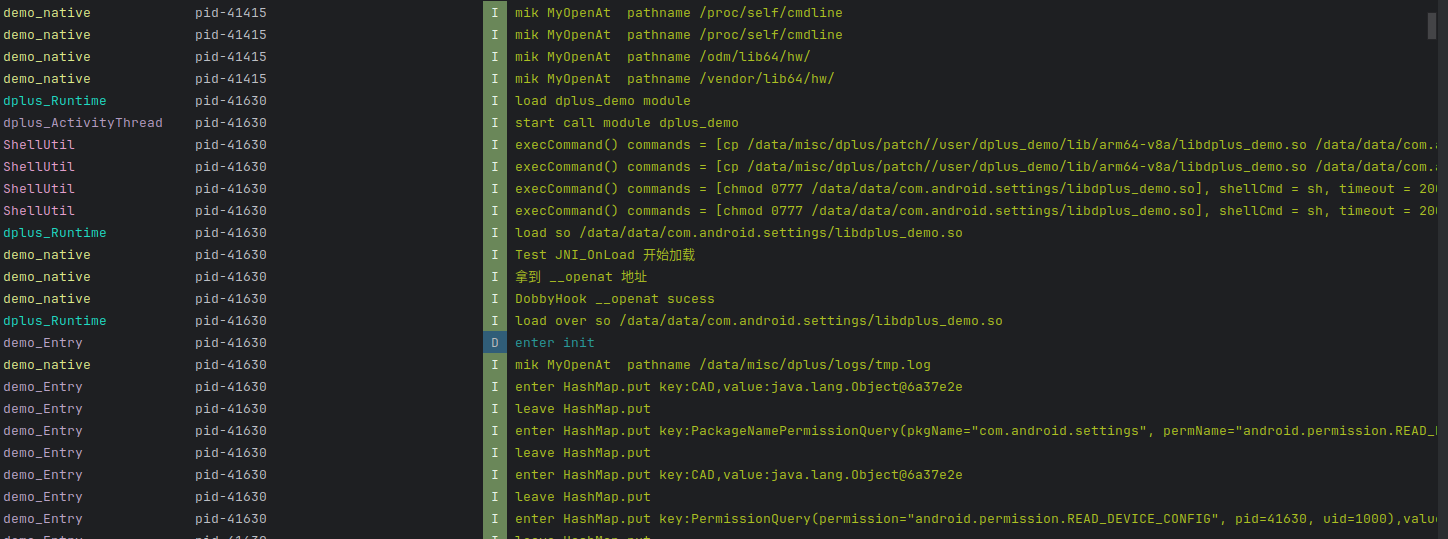
This module tests the Settings application. When the Settings app is closed and reopened, the relevant logs are as shown in the figure below.
;}.cls-2{fill:%230868f7;}.cls-3{fill:url(%23未命名的渐变_44);}.cls-4{fill:%23333;}%3c/style%3e%3clinearGradient%20id='未命名的渐变_8'%20x1='33.73'%20y1='100.61'%20x2='-0.03'%20y2='-1.06'%20gradientUnits='userSpaceOnUse'%3e%3cstop%20offset='0'%20stop-color='%237ae9fb'/%3e%3cstop%20offset='0.67'%20stop-color='%232b90f8'/%3e%3cstop%20offset='1'%20stop-color='%230868f7'/%3e%3c/linearGradient%3e%3clinearGradient%20id='未命名的渐变_44'%20x1='27.86'%20y1='18.67'%20x2='68.36'%20y2='22.22'%20gradientUnits='userSpaceOnUse'%3e%3cstop%20offset='0'%20stop-color='%235ac7f2'/%3e%3cstop%20offset='1'%20stop-color='%230868f7'/%3e%3c/linearGradient%3e%3c/defs%3e%3cpath%20class='cls-1'%20d='M29,28.74V81.91l-9.51-3.68v0L8.52,74A7.17,7.17,0,0,1,4,67.32V24.54A3.76,3.76,0,0,1,9.08,21Z'/%3e%3cpath%20class='cls-2'%20d='M68.09,78.07a13.15,13.15,0,0,1-17.9,12.06L29,81.91h0V28.74L50.19,37A13.17,13.17,0,0,0,68.08,25.3h0Z'/%3e%3cpath%20class='cls-3'%20d='M68.08,25.3a13.19,13.19,0,0,1-6.73,10.87A13.09,13.09,0,0,1,50.19,37L29,28.74V6A3.76,3.76,0,0,1,34.1,2.52l25.59,9.91A13.22,13.22,0,0,1,68.08,25.3Z'/%3e%3cpath%20class='cls-4'%20d='M129.06,81.76a4.33,4.33,0,0,1-3.19-1.31,4.4,4.4,0,0,1-1.31-3.24V56.86H97.65V77.21a4.36,4.36,0,0,1-1.35,3.2A4.68,4.68,0,0,1,93,81.76a4.32,4.32,0,0,1-3.19-1.31,4.37,4.37,0,0,1-1.32-3.24V27.27A4.58,4.58,0,0,1,89.83,24a4.59,4.59,0,0,1,7.82,3.27V48.15h26.91V27.27A4.58,4.58,0,0,1,125.91,24a4.59,4.59,0,0,1,7.82,3.27V77.21a4.37,4.37,0,0,1-1.36,3.2A4.65,4.65,0,0,1,129.06,81.76Z'/%3e%3cpath%20class='cls-4'%20d='M163.77,81.66c-6.57,0-11.76-1.92-15.44-5.7s-5.54-9.07-5.54-15.74a26.76,26.76,0,0,1,2.09-10.43,17.72,17.72,0,0,1,6.67-8.06,19.15,19.15,0,0,1,10.68-2.95,19,19,0,0,1,10.46,2.8,18.7,18.7,0,0,1,6.55,7.36,22.53,22.53,0,0,1,2.36,10.28A4.51,4.51,0,0,1,177,63.77H152.23a10.8,10.8,0,0,0,3.49,6.65c2,1.68,4.88,2.52,8.66,2.52a22.25,22.25,0,0,0,7.54-1.21c.74-.3,1.55-.67,2.37-1.07a3.75,3.75,0,0,1,1.84-.4,4.09,4.09,0,0,1,3,1.15,4,4,0,0,1,1.12,3,4.38,4.38,0,0,1-2.58,3.82,32.34,32.34,0,0,1-6.36,2.61A28.67,28.67,0,0,1,163.77,81.66ZM172.4,55.9a9.72,9.72,0,0,0-1.63-4.56A9.9,9.9,0,0,0,167,48a10.38,10.38,0,0,0-4.64-1.14,12,12,0,0,0-4.77,1.06,9.54,9.54,0,0,0-4.89,5.66,11.78,11.78,0,0,0-.51,2.3Z'/%3e%3cpath%20class='cls-4'%20d='M193,81.64a4.49,4.49,0,0,1-4.51-4.55V27.28A4.58,4.58,0,0,1,189.84,24a4.48,4.48,0,0,1,3.28-1.36A4.36,4.36,0,0,1,196.35,24a4.46,4.46,0,0,1,1.31,3.31V77.09a4.34,4.34,0,0,1-1.35,3.2A4.67,4.67,0,0,1,193,81.64Z'/%3e%3cpath%20class='cls-4'%20d='M263.79,81.71a5.7,5.7,0,0,1-4.2-1.74,5.76,5.76,0,0,1-1.73-4.19V27.37a4.58,4.58,0,0,1,1.35-3.27A4.59,4.59,0,0,1,267,27.37V72.53h24a4.58,4.58,0,0,1,3.27,7.82A4.66,4.66,0,0,1,291,81.71Z'/%3e%3cpath%20class='cls-4'%20d='M424.48,81.74a4.71,4.71,0,0,1-2.71-.88,5.43,5.43,0,0,1-1-1l-.07-.09-12.41-17-5.41,5v9.44a4.31,4.31,0,0,1-1.36,3.19,4.66,4.66,0,0,1-3.3,1.36A4.29,4.29,0,0,1,395,80.42a4.36,4.36,0,0,1-1.32-3.23V27.37A4.58,4.58,0,0,1,395,24.1a4.52,4.52,0,0,1,6.58.12,4.54,4.54,0,0,1,1.24,3.15V56.31l17.72-16.38.05,0a4.8,4.8,0,0,1,2.94-1.11,4.4,4.4,0,0,1,3.27,1.2,4.57,4.57,0,0,1,1.2,3.27,4.44,4.44,0,0,1-.77,2.33,7.45,7.45,0,0,1-1.43,1.65l-11,9.64,13.34,17.68a5,5,0,0,1,1,2.71,4.12,4.12,0,0,1-1.36,3.24A4.64,4.64,0,0,1,424.48,81.74Z'/%3e%3cpath%20class='cls-4'%20d='M317.93,81.76a21.5,21.5,0,1,1,21.17-21.5A21.37,21.37,0,0,1,317.93,81.76Zm0-34.1a12.61,12.61,0,1,0,12.42,12.6A12.52,12.52,0,0,0,317.93,47.66Z'/%3e%3cpath%20class='cls-4'%20d='M212.18,101.22a4.12,4.12,0,0,1-3.05-1.26,4.17,4.17,0,0,1-1.26-3.1V43.34a4.37,4.37,0,0,1,1.3-3.14,4.26,4.26,0,0,1,3.13-1.3,4.19,4.19,0,0,1,3.1,1.26,4.32,4.32,0,0,1,1.26,3.16,20.77,20.77,0,0,1,13-4.54,21.51,21.51,0,0,1,0,43,20.51,20.51,0,0,1-13-4.57V96.86a4.15,4.15,0,0,1-1.3,3.06A4.5,4.5,0,0,1,212.18,101.22Zm17.43-53.63c-6.23,0-12.93,4.11-12.93,12.72a12.73,12.73,0,0,0,25.46,0A12.71,12.71,0,0,0,229.61,47.59Z'/%3e%3cpath%20class='cls-4'%20d='M365.76,81.76a21.5,21.5,0,1,1,21.18-21.5A21.37,21.37,0,0,1,365.76,81.76Zm0-34.1a12.61,12.61,0,1,0,12.42,12.6A12.52,12.52,0,0,0,365.76,47.66Z'/%3e%3c/svg%3e)